Audio
Sound is crucial in creating games. From background music to environment ambience to sound effects, audio in a game can make or break your user immersion.
GameKit's audio system allows you to import audio and manipulate them in-game to fit your desired outcomes.
Before proceeding, here are a few points to take note of:
- GameKit does not support streaming audio from disk/network
- GameKit only support the wave format (.wav)
Preloading Audio Clips
Before audio can be played in your scene/entity, you first need to preload it using the static Audio class. This loads
the file from the resources directory into memory with a unique key. Your application will throw an exception if an
existing key is reused.
The sample below illustrates preloading of non-spatial and spatial audio clips:
import dev.gamekit.audio.AudioAttenuation;
import dev.gamekit.audio.AudioClip2D;
import dev.gamekit.audio.AudioClip3D;
import dev.gamekit.audio.AudioGroup;
import dev.gamekit.audio.shapes.AudioShape;
import dev.gamekit.audio.shapes.AudioShapeCircle;
import dev.gamekit.core.Application;
import dev.gamekit.core.Scene;

public class AudioSample extends Scene {
  private static final String BG_MUSIC_KEY = "music";
  private static final String EXPLOSION_SFX_KEY = "explosion";

  private boolean playing = false;

  public AudioSample() {
    super("Main Scene");

    // Non-spatial (2D) audio
    Audio.preload(
      BG_MUSIC_KEY,
      new AudioClip2D("bg-music.wav", AudioGroup.MUSIC, 1)
    );

    // Spatial (3D) audio
    Audio.preload(
      EXPLOSION_SFX_KEY,
      new AudioClip3D(
        "explosion.wav", AudioGroup.EFFECTS, 1,
        AudioAttenuation.LINEAR, new AudioShapeCircle(5, 30)
      )
    );
  }

  public static void main(String[] args) {
    Application game = new Application("Audio Sample") { };
    game.loadScene(new AudioSample());
    game.run();
  }
}
The Audio Clip
The abstract AudioClip class handles the loading of audio files from the resources directory and has methods to
control playback.
We extend the code sample above illustrating the playback methods (Some code is omitted for brevity)
/** Omitted imports */

public class AudioSample extends Scene {
  private static final String BG_MUSIC_KEY = "music";
  private static final String EXPLOSION_SFX_KEY = "explosion";

  /** Omitted code */

  @Override
  protected void update() {
    Audio.get(BG_MUSIC_KEY).play()        // Start playback from the beginning of the audio (No looping)
    Audio.get(BG_MUSIC_KEY).play(true)    // Start playback with looping
    Audio.get(BG_MUSIC_KEY).pause()       // Pause playback
    Audio.get(BG_MUSIC_KEY).resume()      // Resume playback from previously paused position
    Audio.get(BG_MUSIC_KEY).stop()        // Stop playback and rewind to the beginning
  }
}
Audio Groups
Audio groups are the answer to the question "How do I control the properties of multiple audio clips at once?". By requiring an audio group on every audio clip, the volume and muted status of all clips in the group can be controlled.
The most practical example is implementation of a sound settings interface within your game.
GameKit ships with two (2) default audio groups: AudioGroup.MUSIC and AudioGroup.EFFECTS. However, you can create
more by extending the AudioGroup class.
An example on creating a new audio group for, say voice narrations, is shown below:
import dev.gamekit.audio.AudioGroup;

/** An audio group called "Narration" with an initial max volume of 50% */
public class NarrationAudioGroup extends AudioGroup {
  public static final NarrationAudioGroup INSTANCE = new NarrationAudioGroup();

  private NarrationAudioGroup() {
    super("Narration", 0.5);
  }
}
The new audio group can then be used on audio clips. It is important to use the same instance of the audio group.
new AudioClip2D("test.wav", NarrationAudioGroup.INSTANCE, 0.75);
new AudioClip3D("test.wav", NarrationAudioGroup.INSTANCE, 1, AudioAttenuation.LINEAR, new AudioShapeCircle(5, 30));
Adjusting Group Properties
Withing your game (E.g. the sound settings page), you can adjust and audio groups by calling methods on them as shown in the sample below:
// Set the max volume of the AudioGroup.MUSIC group to 100%
AudioGroup.MUSIC.setMaxVolume(1);

// Set the max volume of the AudioGroup.EFFECTS group to 40%
AudioGroup.EFFECTS.setMaxVolume(0.4);

// Mute the NarrationAudioGroup.INSTANCE group
NarrationAudioGroup.INSTANCE.setMuted(true);
Spatial vs Non-Spatial
GameKit's audio is grouped into two categories:
- Non-spatial audio
- Spatial audio
Non-Spatial Audio
Non-spatial (2D) audio, plays back at the same volume through both stereo speakers and is not panned. This is ideal for background music, UI sound effects and narration voice-overs.
In GameKit, non-spatial audio is represented by the AudioClip2D class which extends the abstract AudioClip.
The snippet below creates a new non-spatial audio clip from the test.wav resource file with the AudioGroup.MUSIC
group and a max volume of 75%.
new AudioClip2D("test.wav", AudioGroup.MUSIC, 0.75);
Spatial Audio
Spatial (3D) audio refers to positional sound whose output through stereo speakers is panned with respect to the
AudioListener instance. This means, if the audio is placed to the right of the listener, it will be heard more from
the right speaker than the left and vice versa.
Spatial audio is great for sound-emitting objects in your game world, which are panned relative to the player (E.g. explosions, characters, etc.)
The snippet below creates a new spatial audio clip from the test.wav resource file with the AudioGroup.EFFECTS
group, a max volume of 100%, a linear attenuation within a circular shape with min and max distances of 5 and 30
respectively.
new AudioClip3D("test.wav", AudioGroup.EFFECTS, 1, AudioAttenuation.LINEAR, new AudioShapeCircle(5, 30));
Audio Listener
Spatial audio requires a listener reference position to compute the relative panning. This controls how much of it is heard through the left and right speakers.
This listener reference is represented by the singleton AudioListener class. It is essentially the position of your "
ears" in the scene for spatial audio.
For example, if your player character is the entity responsible for "hearing", you should make sure to update the
AudioListener position to match the player's in-game position.
This way, if the player gets close to, say a fireplace which emits sound, you'd hear the sound more on the right speaker if the fireplace is to the right of it.
In the example below, we show how you would update the AudioListener instance in a hypothetical player entity class.
import dev.gamekit.core.Entity;
import dev.gamekit.core.Input;

class PlayerCharacter extends Entity {
  public PlayerCharacter() {
    super("Player Character");
  }

  /** Omitted code */

  @Override
  protected void update() {
    if (Input.isKeyPressed(Input.KEY_A)) {
      /** Code to move player character left */
    } else if (Input.isKeyPressed(Input.KEY_D)) {
      /** Code to move player character right */
    }

    double positionX = /** Retrive x-coordinate */
    double positionY = /** Retrive y-coordinate */

    // Update the audio listener position
    AudioListener.setPosition(positionX, positionY);
  }
}
Audio Shapes
Audio shapes model the area of spatial audio's range. They specify the minimum and maximum attenuation distances with respect to a shape. Common audio shapes include circle, box and capsule, illustrated below:
 Circle Audio Shape
 Box Audio Shape
 Capsule Audio Shape
The circle audio shape represents the natural shape of sound, starting at a point and propagating outward. The box
audio shape can represent spatial sound in a rectangular room for example, while the capsule can be used for pipes.
Audio shapes are represented by the abstract AudioShape class. You can extend this and implement the
getDistance method to define custom audio shapes.
GameKit ships with the concrete AudioShape.CIRCLE shape implementation.
Attenuation Function
Attenuation for spatial audio is the falloff in perceived volume of an audio source as the listener moves away from it. Mathematically, it is a function which maps the distance between the source and listener to a volume value.
While audio shapes define the area in which attenuation occurs, attenuation functions define how volume attenuation occurs within the shape.
Below, we see three different attenuation functions: linear, logarithmic and inverse. Linear gives a proportional falloff as the distance increases while logarithmic and inverse model a more realistic falloff.
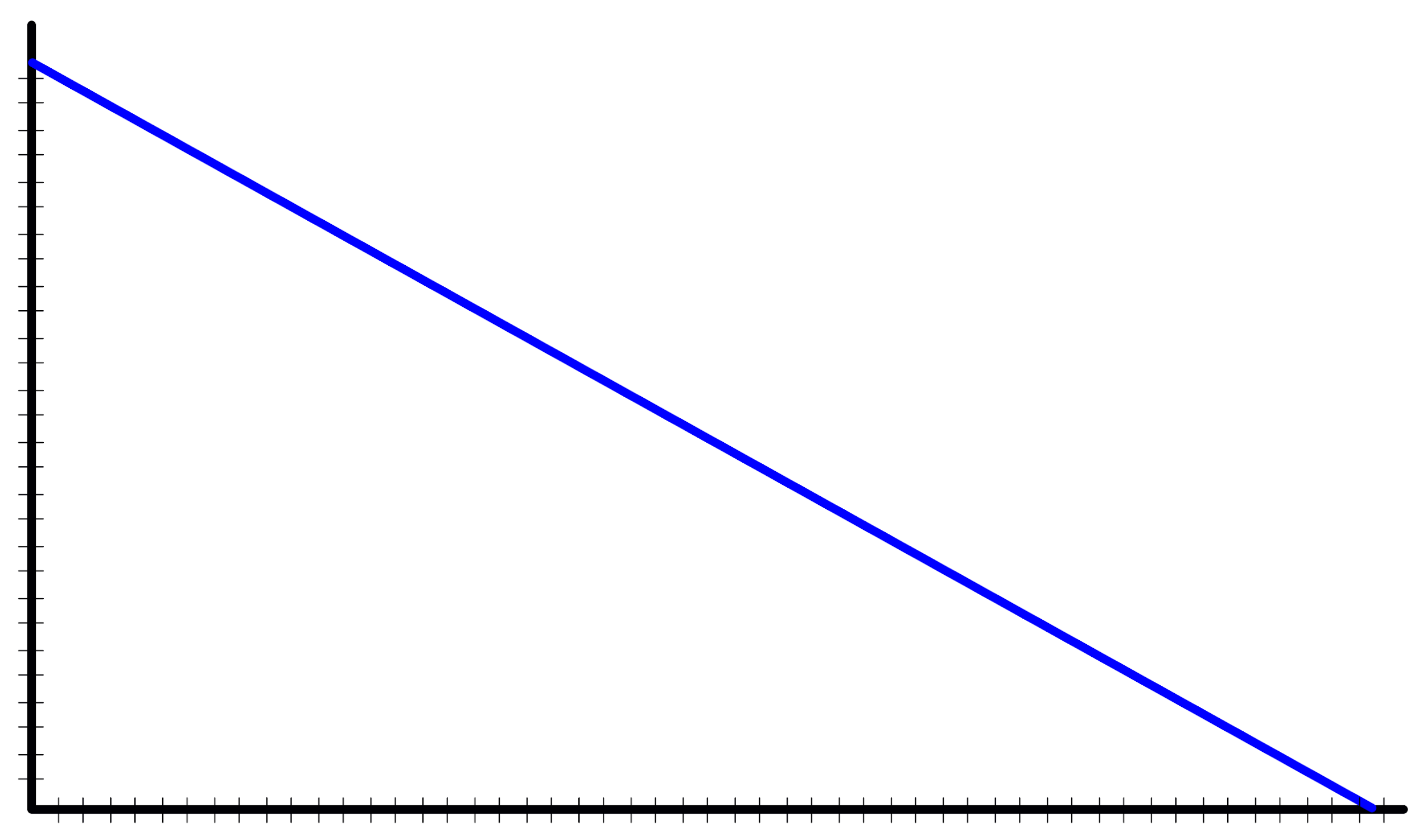 Linear Attenuation
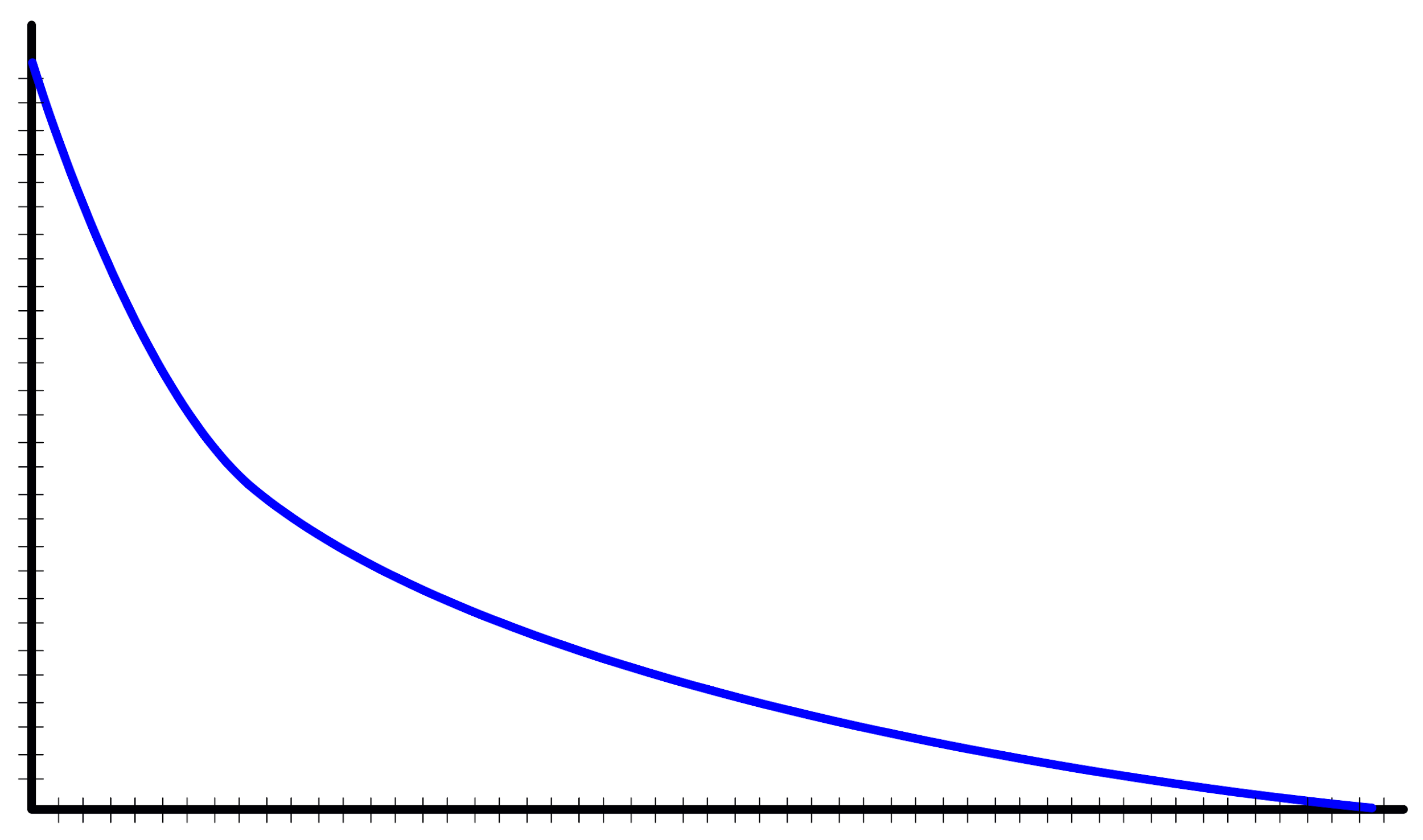 Logarithmic Attenuation
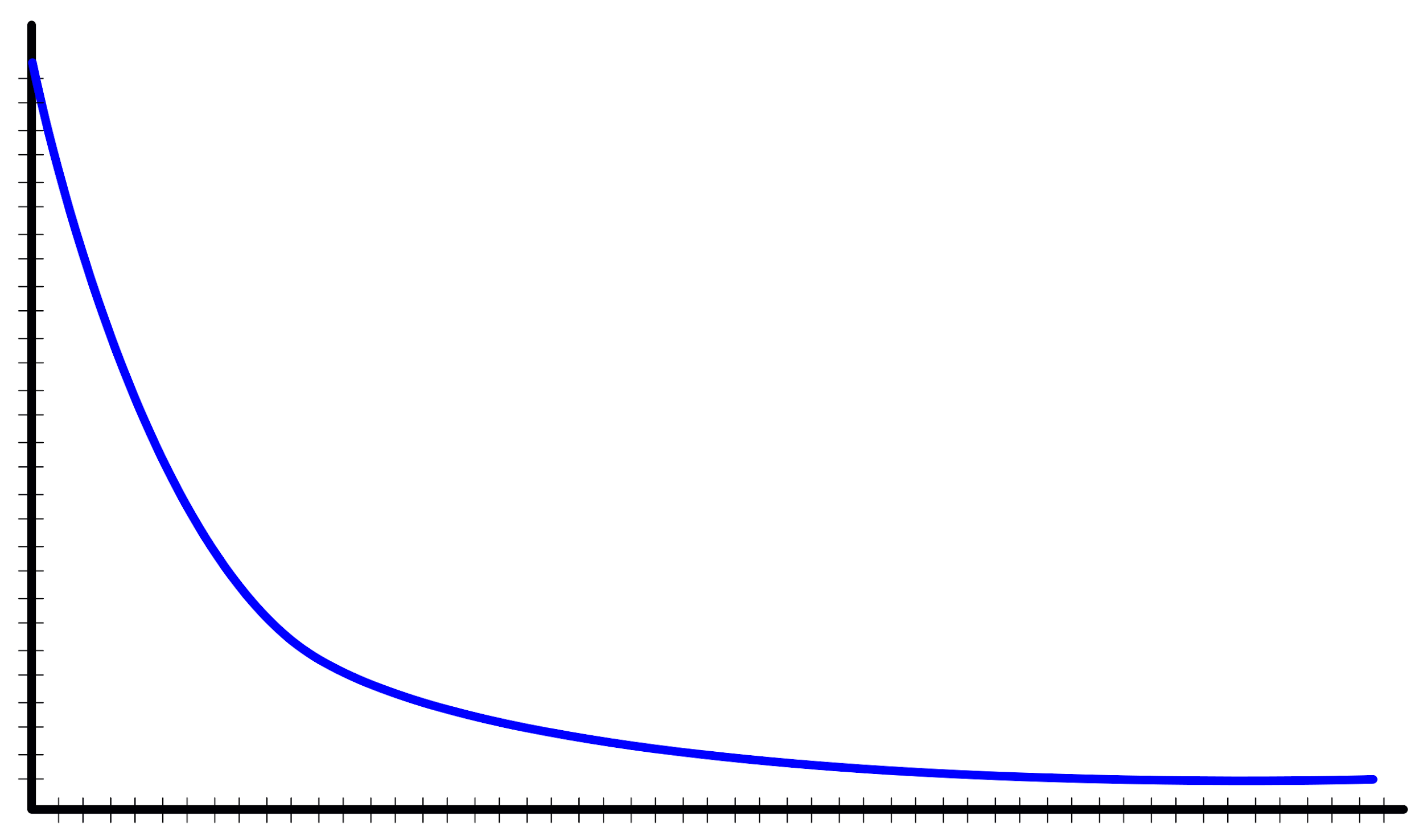 Inverse Attenuation
These curves can be modelled by implementing the AudioAttenuation interface and its getDistance method which
receives the distance between the audio source and the listener and min and max distances of the audio shape and should
return the attenuated volume.
GameKit ships with the concrete AudioAttenuation.LINEAR shape implementation.
Conclusion
While working with audio in a game can be challenging, GameKit does its best to offer tools for effective utilization.
Having reached the end of this document, you should now be able to fully understand the code example at the start of the document.